Body
STEP 1: Log In to LaunchPad
Log into ClassLink with your network username and password.
STEP 2: Access Profile Settings
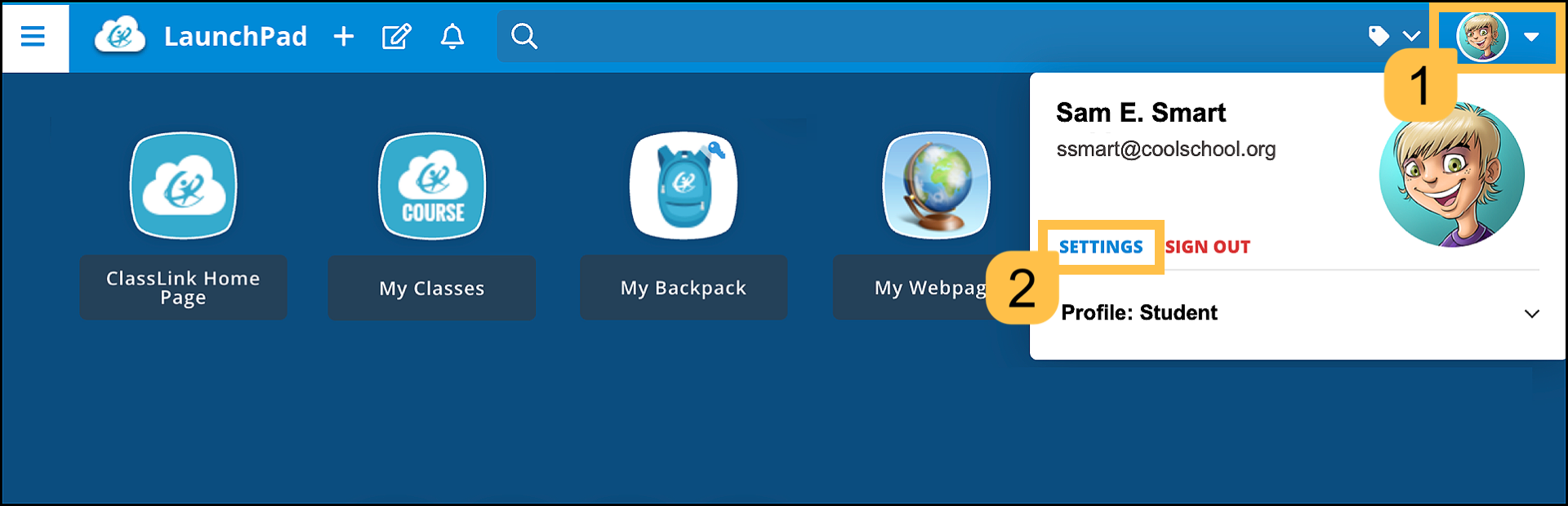
When you log in, you'll land on your LaunchPad home page. Click your profile picture, then click SETTINGS.
STEP 3: Connect Microsoft
A slide-over opens. Click the Sign-In Options tab, then click the link icon for the Microsoft option.

Congratulations
Your Microsoft account is now successfully linked.
Going forward, you may sign in to ClassLink by selecting the Microsoft icon on the ClassLink login page to use Microsoft Single Sign-On (SSO).
